Building Custom Forms
Create intake forms, surveys, and checklists with the drag-and-drop form builder
Building Custom Forms
Hydra's form builder lets you create custom forms without any coding. Build intake forms, service checklists, customer surveys, and more.
Accessing the Form Builder
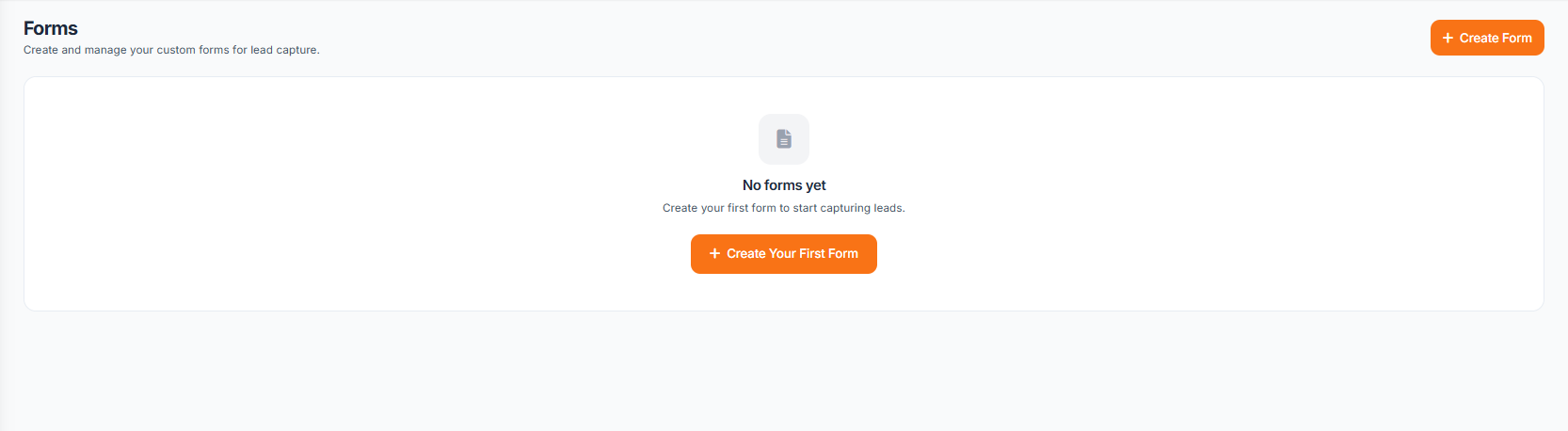 Navigate to Forms in your company sidebar, then click Create New Form.
Form Basics
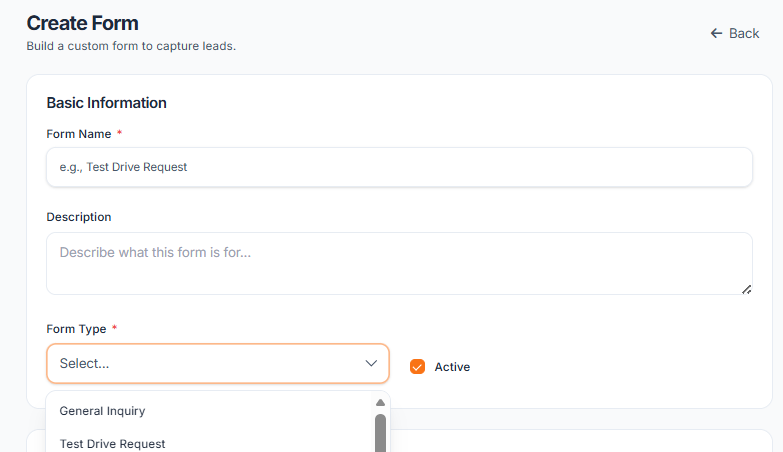 Every form starts with:
- Form Name - Internal name for your reference
- Description - Explain the form's purpose
- Type - How the form will be used
Form Types
| Type | Use Case |
|---|---|
| Intake | Customer information collection |
| Checklist | Staff inspection forms |
| Survey | Customer feedback |
| Waiver | Terms and liability agreements |
Adding Fields
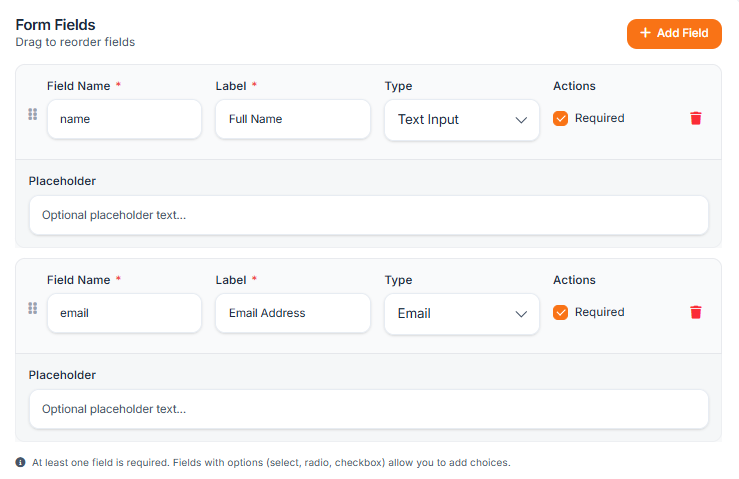 Drag fields from the palette onto your form:
Text Fields
- Short Text - Single line (names, phone numbers)
- Long Text - Multiple lines (descriptions, notes)
- Email - Validated email input
- Phone - Formatted phone number
Selection Fields
- Dropdown - Single selection from a list
- Radio Buttons - Single selection, all options visible
- Checkboxes - Multiple selections allowed
Special Fields
- Date - Date picker
- Time - Time selection
- File Upload - Accept documents, images
- Signature - Digital signature capture
Configuring Fields
Click any field to configure:
- Label - The question or field name
- Placeholder - Example text inside the field
- Required - Must be filled to submit
- Help Text - Additional instructions
Validation Options
Set rules for data entry:
- Minimum/maximum length
- Number ranges
- Pattern matching (e.g., phone format)
- File size limits
Organizing Your Form
Sections
Group related fields under headings:
- Add a Section element
- Give it a title
- Drag fields into the section
Conditional Logic
Show or hide fields based on answers:
- Select a field
- Click Add Condition
- Set the trigger (e.g., "If Service Type = Oil Change")
- Choose fields to show/hide
Saving and Publishing
- Save Draft - Work in progress, not visible
- Publish - Make the form active and usable
Published forms can be:
- Embedded in your booking flow
- Shared via direct link
- Used internally by staff