Creating Your Company
Set up your company profile and customize your workspace
Creating Your Company
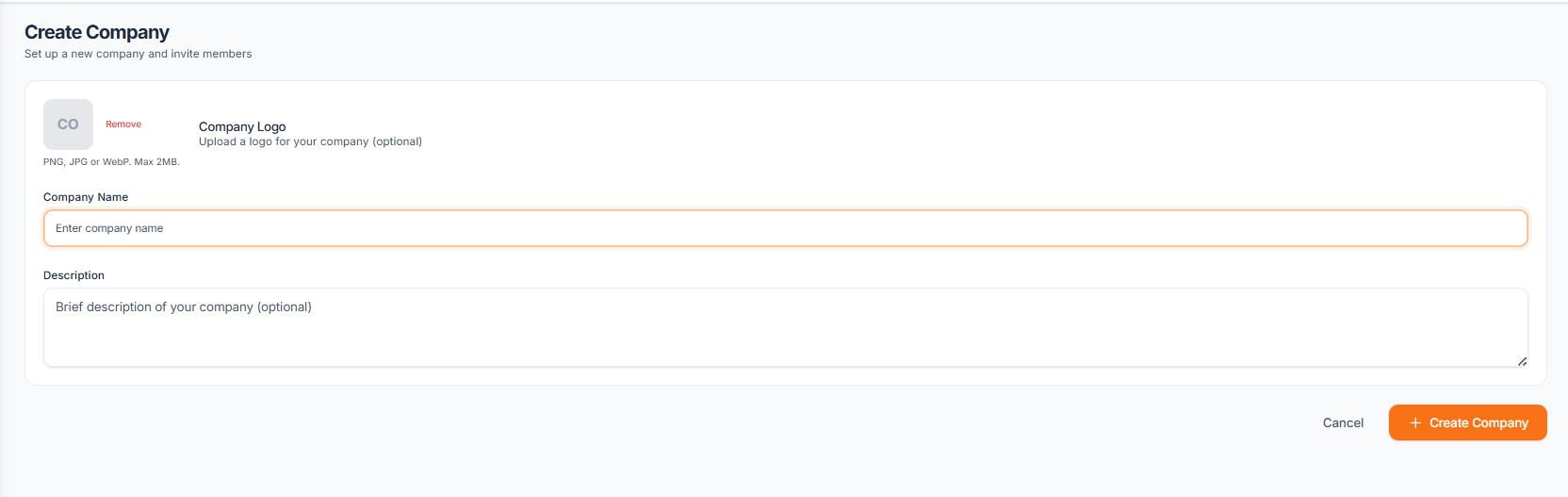 Your company in Hydra serves as the central hub for all your business operations. This guide walks you through setting up your company profile.
Step 1: Access Company Setup
After logging in, navigate to Companies from your dashboard. Click the Create Company button to begin.
Step 2: Basic Information
Fill in your company details:
- Company Name - Your business name as it should appear to customers
- Description - A brief description of your services
- Industry - Select your business category
- Contact Email - The primary email for business communications
- Phone Number - Your business contact number
Step 3: Business Address
Enter your physical location:
- Street address
- City and state/province
- Postal/ZIP code
- Country
This address will be displayed on your public booking page and used for location-based features.
Step 4: Branding
Customize how your company appears:
- Logo - Upload your company logo (recommended: 512x512px PNG)
- Cover Image - A banner image for your profile (recommended: 1200x400px)
- Brand Color - Select a primary color that matches your brand
Step 5: Operating Hours
Set your standard business hours:
- Select which days you're open
- Set opening and closing times for each day
- Mark any days as closed if needed
These hours serve as defaults for your availability settings.
What's Next?
Once your company is created, you can:
- Invite team members to join your workspace
- Set up your service offerings
- Configure your booking availability
- Create custom intake forms
Your company dashboard will become your central command center for managing all aspects of your business.