Inviting Team Members
Add staff to your company and manage their access permissions
Inviting Team Members
Collaborate effectively by adding your staff to your Hydra company. Each team member gets their own account with role-based permissions.
Understanding Roles
Hydra uses a role-based permission system:
Owner
- Full access to all features
- Can delete the company
- Can transfer ownership
- Manages billing and subscriptions
Admin
- Full access to settings and configuration
- Can invite and remove members
- Can manage all bookings and service jobs
- Cannot delete the company
Manager
- Can view and manage bookings
- Can update service job statuses
- Can view reports and analytics
- Cannot modify company settings
Technician
- Can view assigned service jobs
- Can update job statuses via QR scanner
- Limited access to customer information
- Cannot access administrative features
Sending Invitations

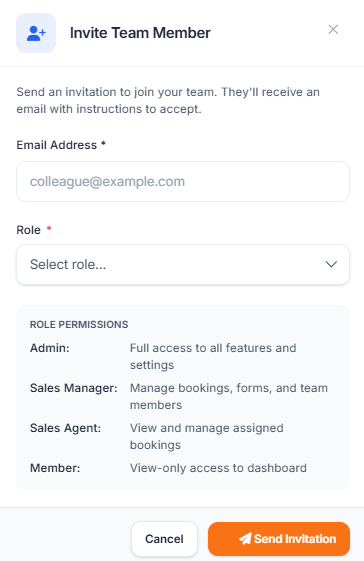
- Go to Company Settings → Members
- Click Invite Member
- Enter the team member's email address
- Select their role from the dropdown
- Click Send Invitation
The invited person will receive an email with instructions to join your company. If they don't have a Hydra account, they'll be prompted to create one.
Managing Existing Members
From the Members page, you can:
- Change roles - Upgrade or downgrade member permissions
- Remove members - Revoke access to your company
- Resend invitations - For pending invitations that weren't received
Best Practices
- Assign the minimum role necessary for each person's job function
- Regularly review member access, especially when staff leave
- Use the Manager role for shift supervisors who need oversight capabilities
- Reserve Admin access for trusted personnel who manage operations