Linking Parts to Service Jobs
Add parts to service jobs for tracking usage and costs
Linking Parts to Service Jobs
When you use parts during a service job, link them to track usage, update inventory, and calculate job costs accurately.
Why Link Parts to Jobs?
- Inventory accuracy - Stock levels update automatically
- Cost tracking - Know the true cost of each job
- Customer invoicing - Parts appear on invoices
- Usage history - See which parts are used most
Adding Parts to a Job
From the Service Job
- Open the service job
- Scroll to the Parts section
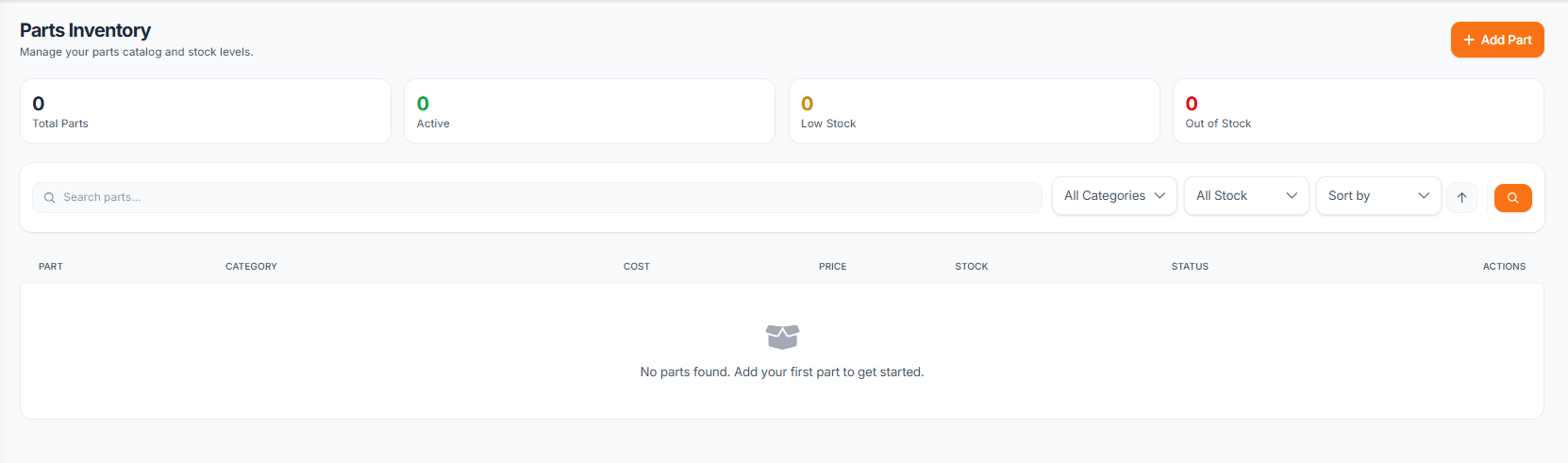
- Click Add Part
- Search for the part by name or SKU
- Enter the quantity used
- Click Add to link the part
Quick Add
For common parts, use quick add:
- In the parts section, start typing the part name
- Select from the autocomplete suggestions
- Adjust quantity if needed
- Press Enter or click to add
Parts Section Overview
The parts section on a service job shows:
| Column | Description |
|---|---|
| Part | Name and SKU |
| Quantity | Number of units used |
| Unit Price | Price per unit |
| Total | Quantity x Unit Price |
| Actions | Edit or remove |
Editing Linked Parts
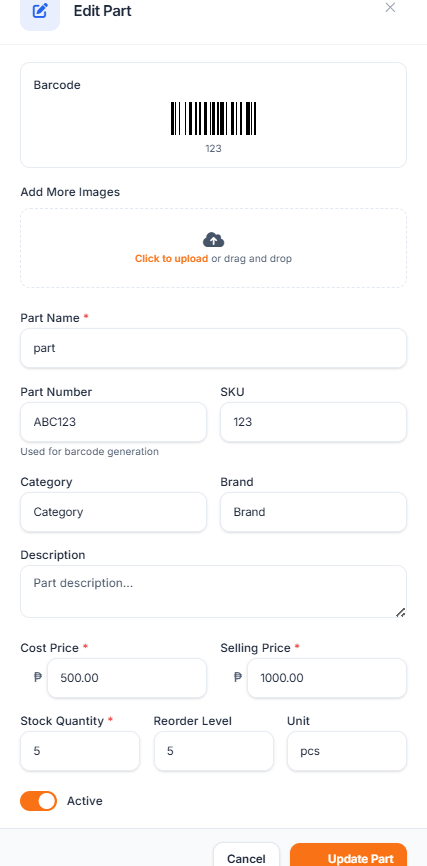
To change the quantity or details:
- Find the part in the job's parts list
- Click the Edit button
- Update the quantity or price
- Save changes
Inventory adjusts automatically based on quantity changes.
Removing Parts
If a part was added incorrectly:
- Find the part in the list
- Click the Remove button
- Confirm removal
The part returns to inventory when removed.
Inventory Impact
When parts are linked to jobs:
Stock Deduction
Stock is deducted when you add parts to a job. This keeps inventory accurate in real-time.
Stock Return
If you remove a part or reduce quantity, stock is returned to inventory.
Low Stock Warnings
If adding a part would cause low stock, you'll see a warning. You can still proceed, but it's a reminder to reorder.
job-part-low-stock.png - Warning message when adding a part that's low in stock
Cost Calculations
Parts affect job profitability:
Job Cost
Total parts cost = Sum of all linked parts (quantity x unit cost)
Customer Price
If you mark up parts:
- Set a sell price on each part
- The job total uses sell prices
- Your profit = Sell price - Unit cost
Cost Summary
The job summary shows:
- Parts cost
- Labor cost (if tracked)
- Total job cost
Parts History
View part usage history for any job:
- Open the service job
- Go to Activity or History tab
- Part additions and removals are logged
This helps with disputes or auditing.
Bulk Part Operations
For jobs requiring many parts:
- Click Bulk Add Parts
- Select multiple parts from the list
- Set quantities for each
- Add all at once
job-bulk-parts.png - Bulk part selection interface
Best Practices
- Add parts as you go - Link parts when they're installed
- Verify quantities - Double-check before saving
- Use correct pricing - Ensure unit costs are current
- Check stock first - Avoid surprises with out-of-stock items
- Document waste - Note any damaged or returned parts