Managing Parts Inventory
Track parts and supplies used in your service operations
Managing Parts Inventory
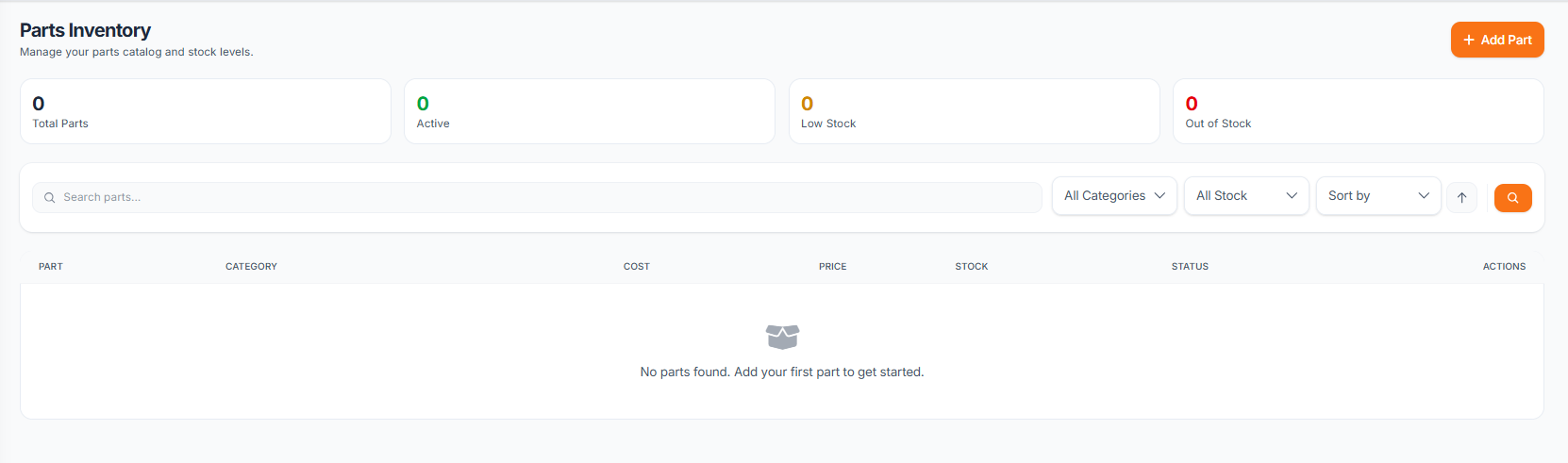
Hydra's parts management helps you track inventory, monitor stock levels, and link parts to service jobs. Keep your operations running smoothly with organized parts tracking.
Accessing Parts Management
Navigate to Parts in your company sidebar to access the parts inventory.
Parts Overview
The parts index displays your entire inventory with key information:
| Column | Description |
|---|---|
| Part Name | Name and description of the part |
| SKU | Stock keeping unit identifier |
| Category | Part category for organization |
| Stock Level | Current quantity in inventory |
| Unit Cost | Cost per unit |
| Status | In stock, Low stock, Out of stock |
Adding Parts
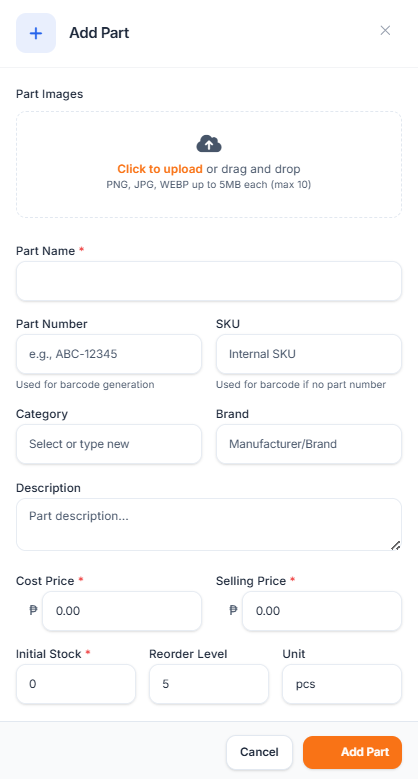
To add a new part to your inventory:
- Click the Add Part button
- Fill in the part details:
- Name - Descriptive part name
- SKU - Unique identifier (optional)
- Category - Select or create a category
- Description - Additional details
- Unit Cost - Your cost per unit
- Sell Price - Customer price (optional)
- Initial Stock - Starting quantity
- Reorder Level - Low stock threshold
- Click Save to add the part
Part Categories
Organize parts into categories for easier management:
Default Categories
- Filters and Fluids
- Brake Components
- Electrical
- Body Parts
- Consumables
Creating Categories
- Go to Parts > Categories
- Click Add Category
- Enter the category name
- Optionally add a description and icon
- Save the category
parts-categories.png - Parts category management page
Stock Levels
Hydra automatically tracks stock status:
| Status | Condition |
|---|---|
| In Stock | Quantity above reorder level |
| Low Stock | Quantity at or below reorder level |
| Out of Stock | Zero quantity remaining |
Setting Reorder Levels
For each part, set a reorder level to receive low stock alerts:
- Edit the part
- Set the Reorder Level field
- When stock drops to this level, the part shows as "Low Stock"
Searching and Filtering
Find parts quickly with search and filters:
Quick Search
Type in the search box to find parts by name, SKU, or description.
Filters
- Category - Filter by part category
- Status - Show only low stock or out of stock items
- Price Range - Filter by cost or sell price
parts-filter.png - Parts index with active filters applied
Editing Parts
To update part information:
- Find the part in the list
- Click the Edit button or the part row
- Modify the details
- Click Save to apply changes
Deleting Parts
Remove parts that are no longer needed:
- Find the part in the list
- Click the Delete button
- Confirm the deletion
Note: Parts linked to service jobs cannot be deleted. Archive them instead.
Importing Parts
For bulk additions, import from a spreadsheet:
- Click Import in the parts toolbar
- Download the template CSV
- Fill in your part data
- Upload the completed file
- Review and confirm the import
Best Practices
- Consistent naming - Use clear, searchable part names
- Set reorder levels - Never run out of critical parts
- Regular audits - Verify physical stock matches system
- Use categories - Keep inventory organized
- Track costs - Maintain accurate pricing for profitability