Managing Bookings
View, confirm, and manage customer appointments
Managing Bookings
Once customers start booking appointments, you'll need to manage them effectively. This guide covers everything from viewing new bookings to handling cancellations.
Viewing Your Bookings
Access your bookings from Bookings in the sidebar. You'll see several views:
Calendar View
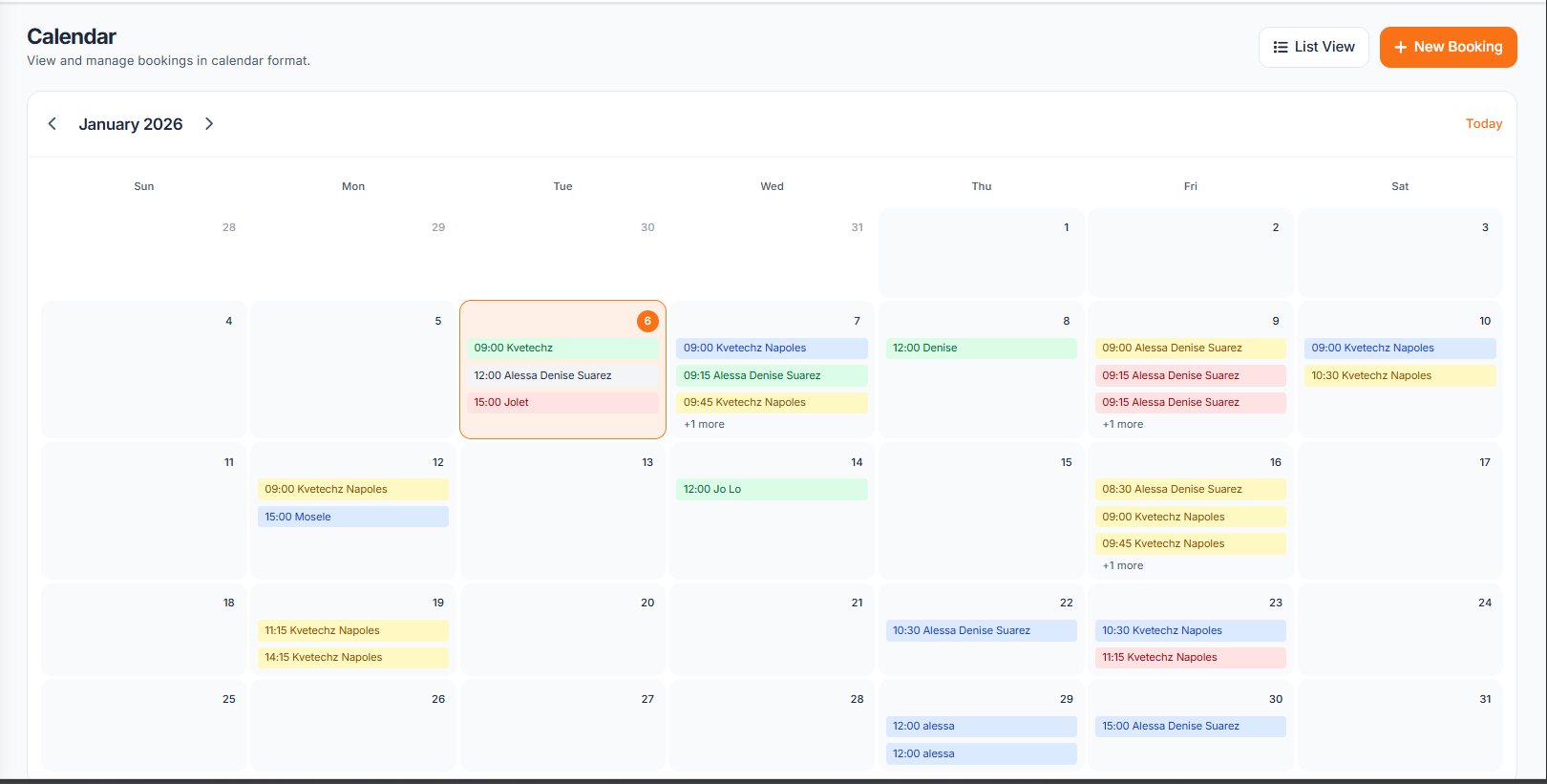 A visual calendar showing all bookings by date. Color-coded by status:
- Yellow - Pending confirmation
- Blue - Confirmed
- Green - Completed
- Gray - No show
- Red - Cancelled
List View
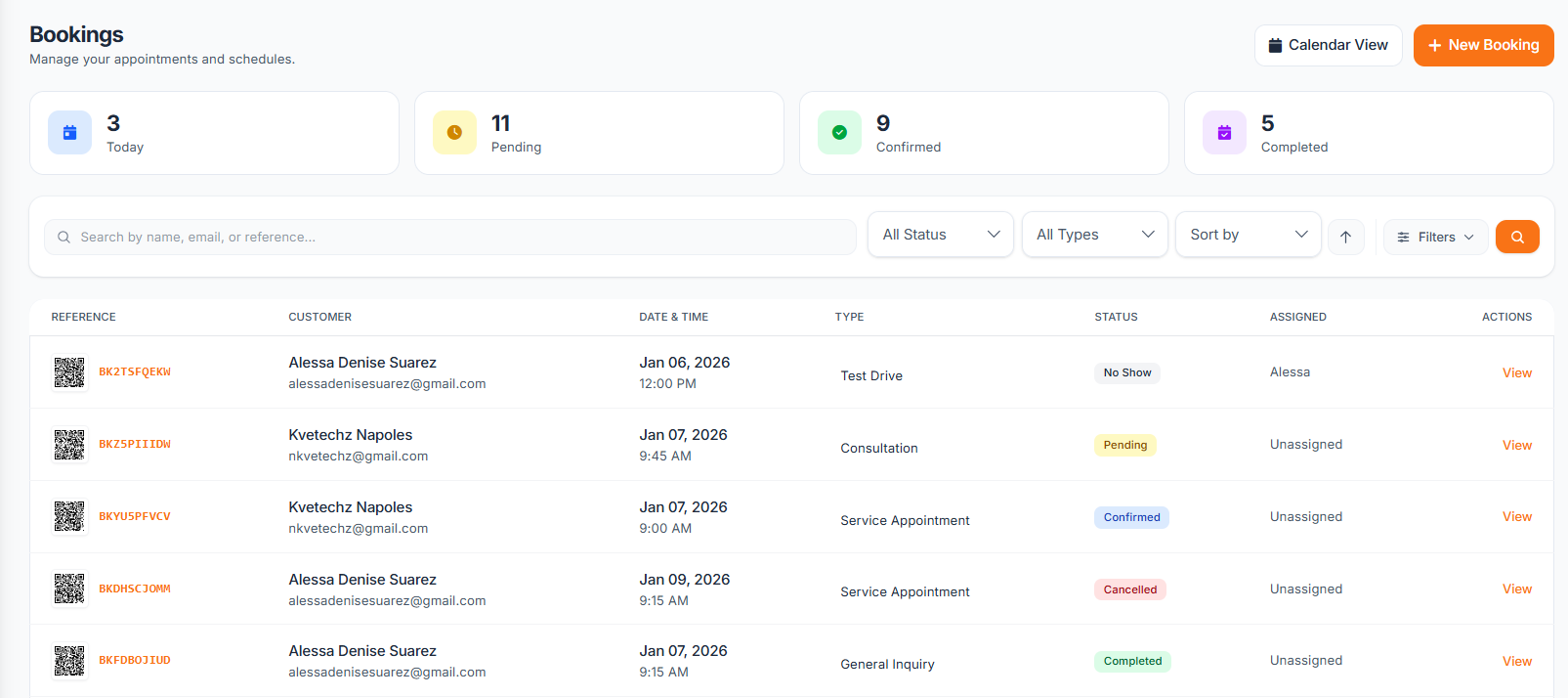 A sortable table of all bookings with quick filters:
- Today's bookings
- Upcoming (next 7 days)
- All bookings
- By status
Booking Statuses
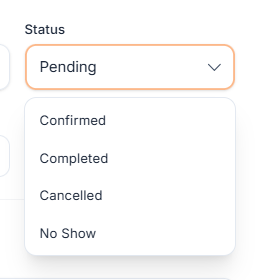 Each booking progresses through these statuses:
- Pending - Customer submitted, awaiting your confirmation
- Confirmed - You've confirmed the appointment
- Completed - Service finished successfully
- Cancelled - Booking was cancelled
- No-Show - Customer didn't arrive
Confirming Bookings
When a new booking comes in:
- Click the booking to view details
- Review customer information and requested service
- Click Confirm Booking to accept
- The customer receives an automatic confirmation email
You can also set up auto-confirmation for trusted customers or specific service types.
Modifying Bookings
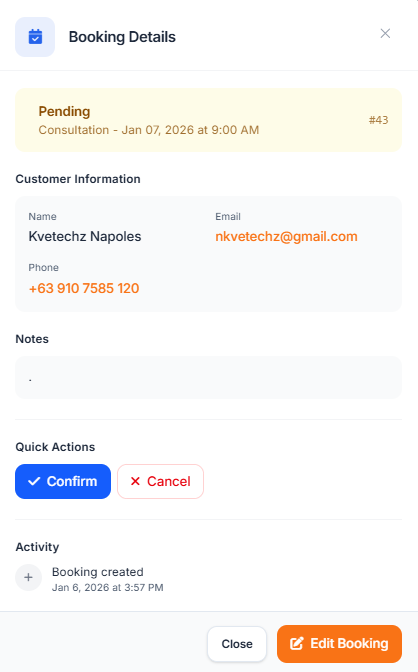
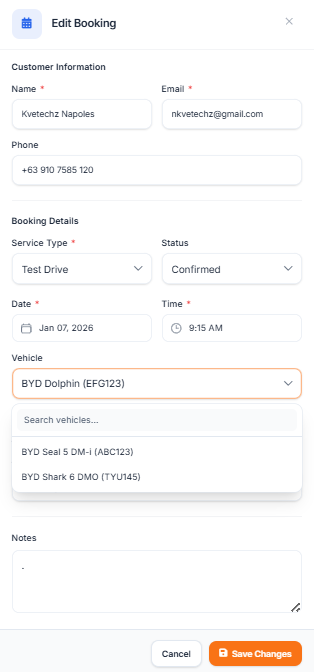 Need to reschedule or change a booking?
- Open the booking details
- Click Edit Booking
- Modify the date, time, or service
- Select your vehicle
- Save changes
- Customer is notified of the changes
Handling Cancellations
If a customer needs to cancel:
- Open the booking
- Click Cancel Booking
- Select a cancellation reason
- Confirm the cancellation
The time slot becomes available again for other customers.
Customer Communication
Each booking includes a notes section where you can:
- Add internal notes (visible only to staff)
- Send messages to the customer
- Record special requests or instructions
Converting to Service Jobs
For service businesses, you can convert a confirmed booking into a service job:
- Open the confirmed booking
- Click Create Service Job
- A new service job is created with the booking details
- The job receives a QR code for status tracking
This creates a seamless workflow from booking to service completion.