Setting Up Availability
Configure when customers can book appointments with your business
Setting Up Availability
Your availability settings determine when customers can book appointments. Hydra gives you flexible control over your schedule.
Accessing Availability Settings
Navigate to your company dashboard and select Availability from the sidebar menu.
Weekly Schedule
Set your recurring weekly availability:
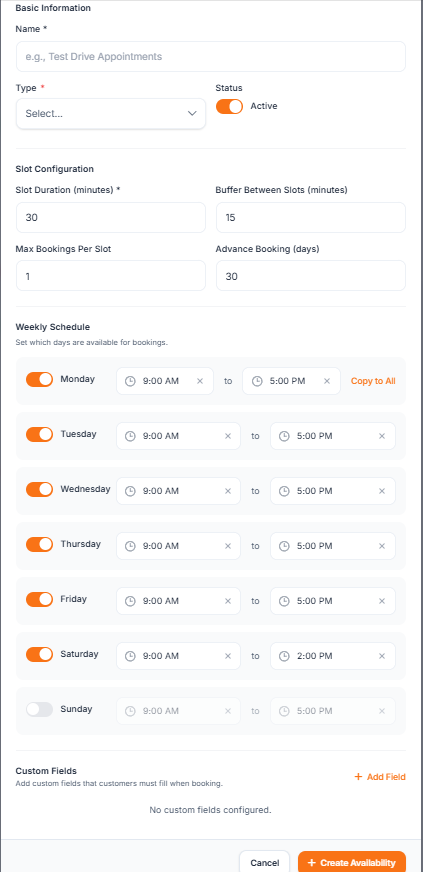
- Select a day - Click on any day of the week
- Add time slots - Define when you're available
- Set capacity - How many bookings you can accept per slot
- Repeat - Apply the same schedule to multiple days
Example Configuration
For a typical automotive service shop:
| Day | Hours | Slots | Capacity |
|---|---|---|---|
| Monday - Friday | 8:00 AM - 6:00 PM | 30 min | 3 vehicles |
| Saturday | 9:00 AM - 2:00 PM | 30 min | 2 vehicles |
| Sunday | Closed | - | - |
Time Slot Duration
Choose how long each booking slot should be:
- 15 minutes - Quick services, consultations
- 30 minutes - Standard appointments
- 1 hour - Extended services
- Custom - Define your own duration
Buffer Time
Add padding between appointments:
- Before booking - Preparation time
- After booking - Cleanup or transition time
This prevents back-to-back bookings and gives you breathing room.
Capacity Per Slot
If you can handle multiple customers simultaneously (multiple service bays, stylists, etc.), set your capacity higher. Each slot can accept bookings up to this limit.
Blocking Time Off
Need to block specific dates?
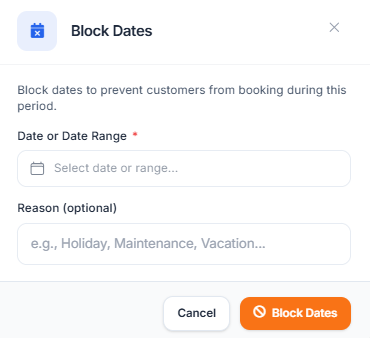
- Go to Blocked Dates
- Click Add Block
- Select the date(s) to block
- Add an optional reason
- Save
Blocked dates won't appear as available to customers.
Tips for Optimal Scheduling
- Start with conservative availability and expand as needed
- Use buffer time to prevent rushing between appointments
- Block holidays and maintenance days in advance
- Review and adjust based on actual booking patterns