Vehicle Inspection & Intake
Document vehicle condition, damages, and belongings during customer check-in
Vehicle Inspection & Intake
The vehicle intake process documents the condition of a vehicle before service begins. This protects both your business and the customer.
Starting an Intake
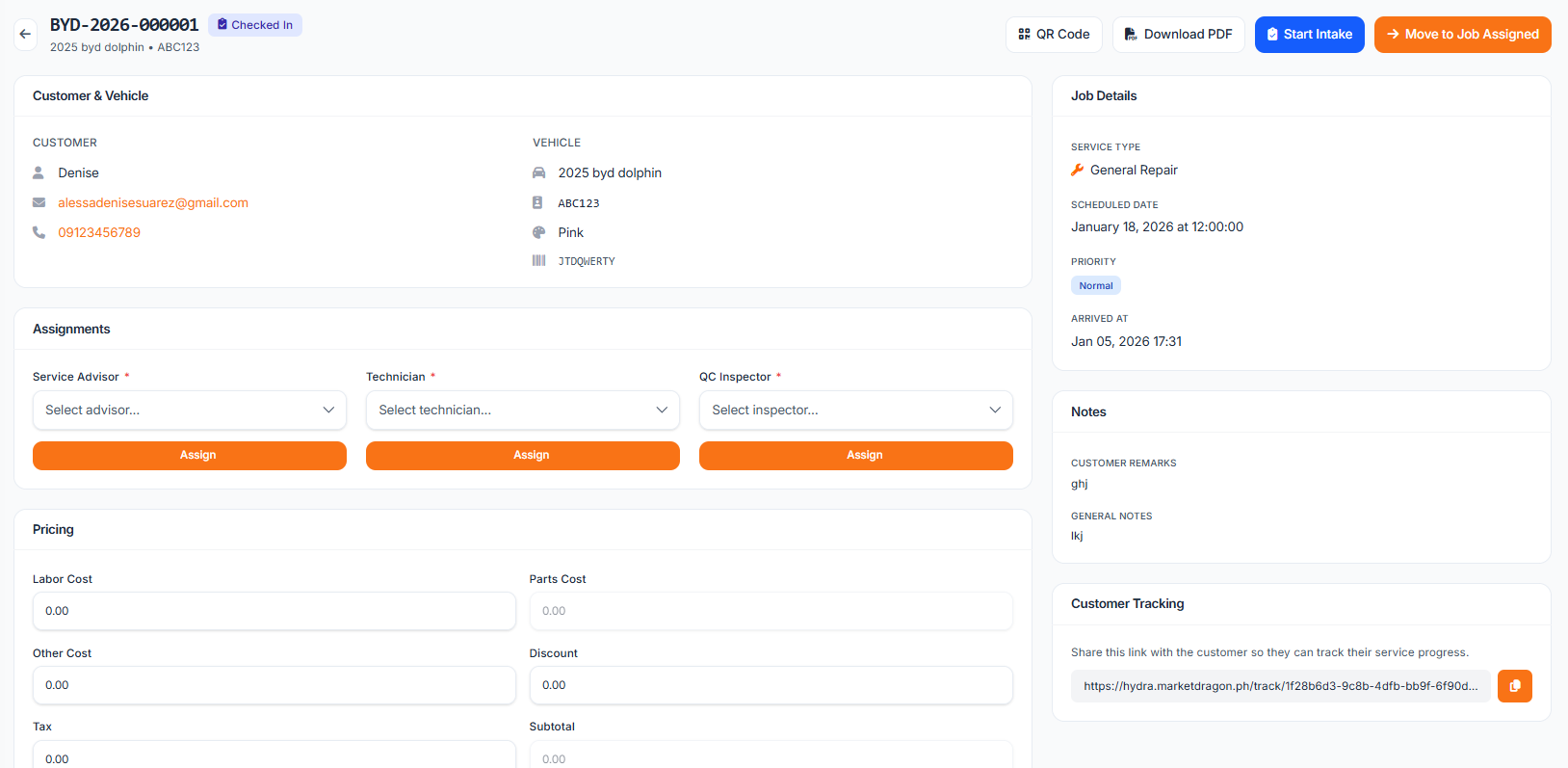
- Open a service job in Checked In status
- Click Start Vehicle Intake
- Complete each section of the intake form
Basic Readings
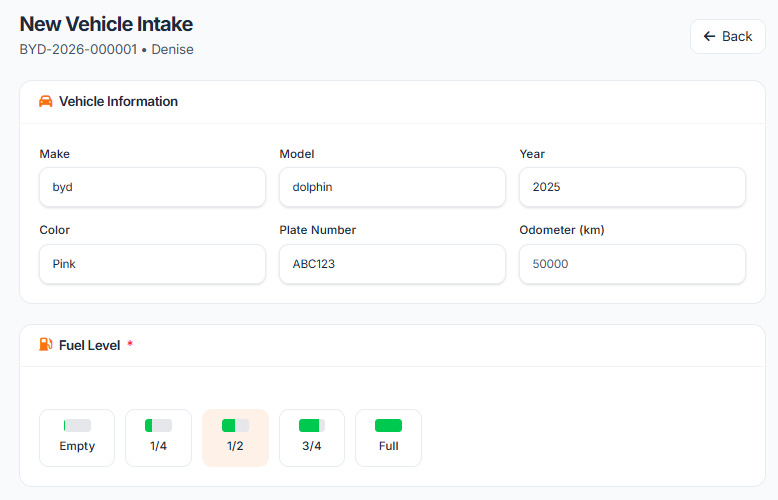 Record essential vehicle readings:
- Odometer - Current mileage reading
- Fuel Level - Select from Empty, 1/4, 1/2, 3/4, or Full
These readings prevent disputes about vehicle usage during service.
Vehicle Checklist
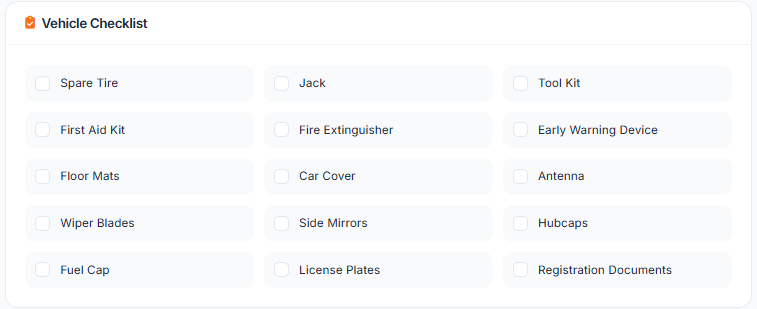 The 15-item checklist covers standard vehicle equipment:
| Item | Item | Item |
|---|---|---|
| Spare tire | Jack | Tool kit |
| First aid kit | Fire extinguisher | Early warning device |
| Floor mats | Car cover | Antenna |
| Wiper blades | Side mirrors | Hubcaps |
| Fuel cap | License plates | Registration docs |
Check each item present in the vehicle. Missing items are automatically noted.
Documenting Exterior Damage
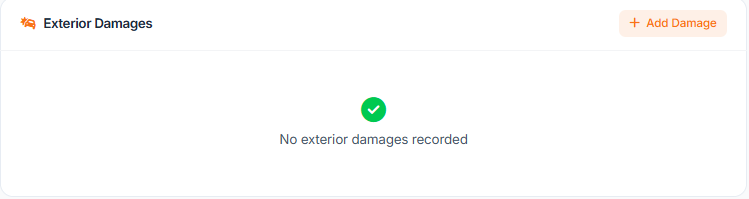 For each damage found:
- Click Add Damage
- Select damage type (scratch, dent, crack, etc.)
- Choose location on the vehicle diagram
- Set severity (minor, moderate, severe)
- Take a photo of the damage
- Add optional description
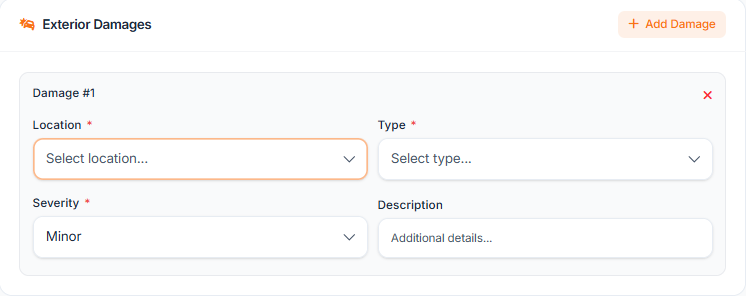
Document all existing damage to avoid liability for pre-existing conditions.
Interior Condition
 Capture the interior state:
- Take photos of front seats, back seats, dashboard
- Note any stains, tears, or damage
- Document cleanliness level
Recording Belongings
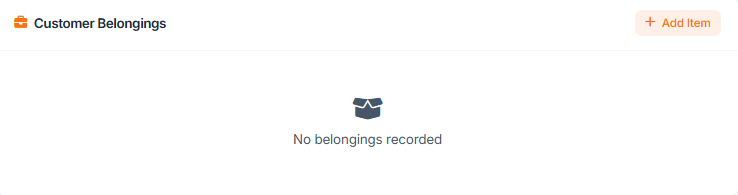
Track valuable items left in the vehicle:
- Click Add Belonging
- Enter item name (e.g., "Sunglasses", "Phone charger")
- Specify location (glove box, center console, trunk)
- Take a photo of the item
This protects against claims of missing items.
Video Walkaround

Record a complete walkaround video:
- Click Start Recording
- Walk around the entire vehicle slowly
- Narrate any notable conditions
- Stop recording when complete
The video provides comprehensive documentation that photos alone cannot capture.
Collecting Signatures
Both parties must sign to confirm the intake:
- Customer Signature - Customer confirms the documented condition
- Staff Signature - Staff confirms the inspection was thorough
Signatures are captured digitally on the touchscreen or mobile device.
Completing the Intake
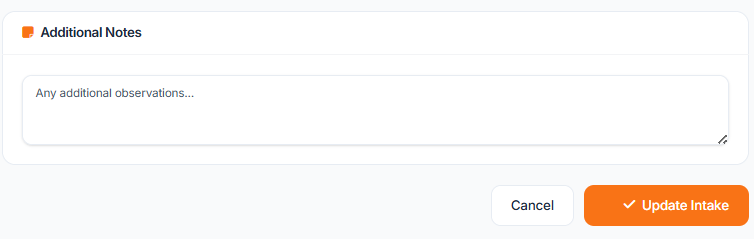
- Review all sections are complete
- Click Submit Intake
- The job automatically transitions to Job Assigned status
Viewing Completed Intakes
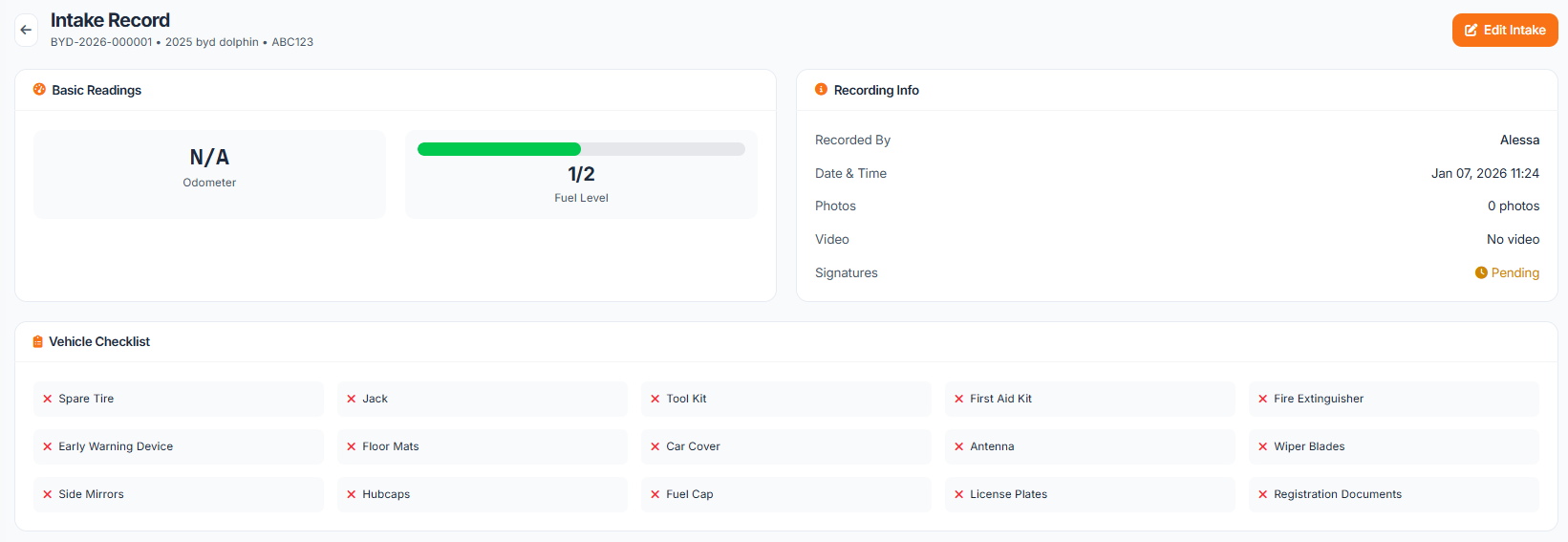
Access intake records anytime:
- Open the service job
- Click View Intake tab
- All photos, damages, and signatures are preserved
Next, learn about the quality control inspection process.